
The mental model
A notification group is the unit that decides how an incident becomes an alert. Each group bundles four things:
- Recipients — one or more email addresses that get the alert.
- Integrations — webhook URLs (Slack, Discord, Teams, PagerDuty, custom endpoints) that fire alongside the email.
- Filters — which severities (Major / Minor / Maintenance) and event types (Opened / Updated / Resolved) match.
- Scope — every monitor on the account, or a hand-picked subset.
Once a group exists, every monitor in scope routes through it automatically. You don't configure alerts per monitor — you configure groups, and monitors opt into them.
The Default group (set up automatically)
The moment you sign up, a Default group is created for your account. Your login email is auto-added and pre-verified, the scope is set to "all monitors", and severity / event filters are set to sensible defaults (Major + Minor on; Maintenance off; Opened + Resolved on; Updated off). This means the first monitor you add starts emailing you the same hour.
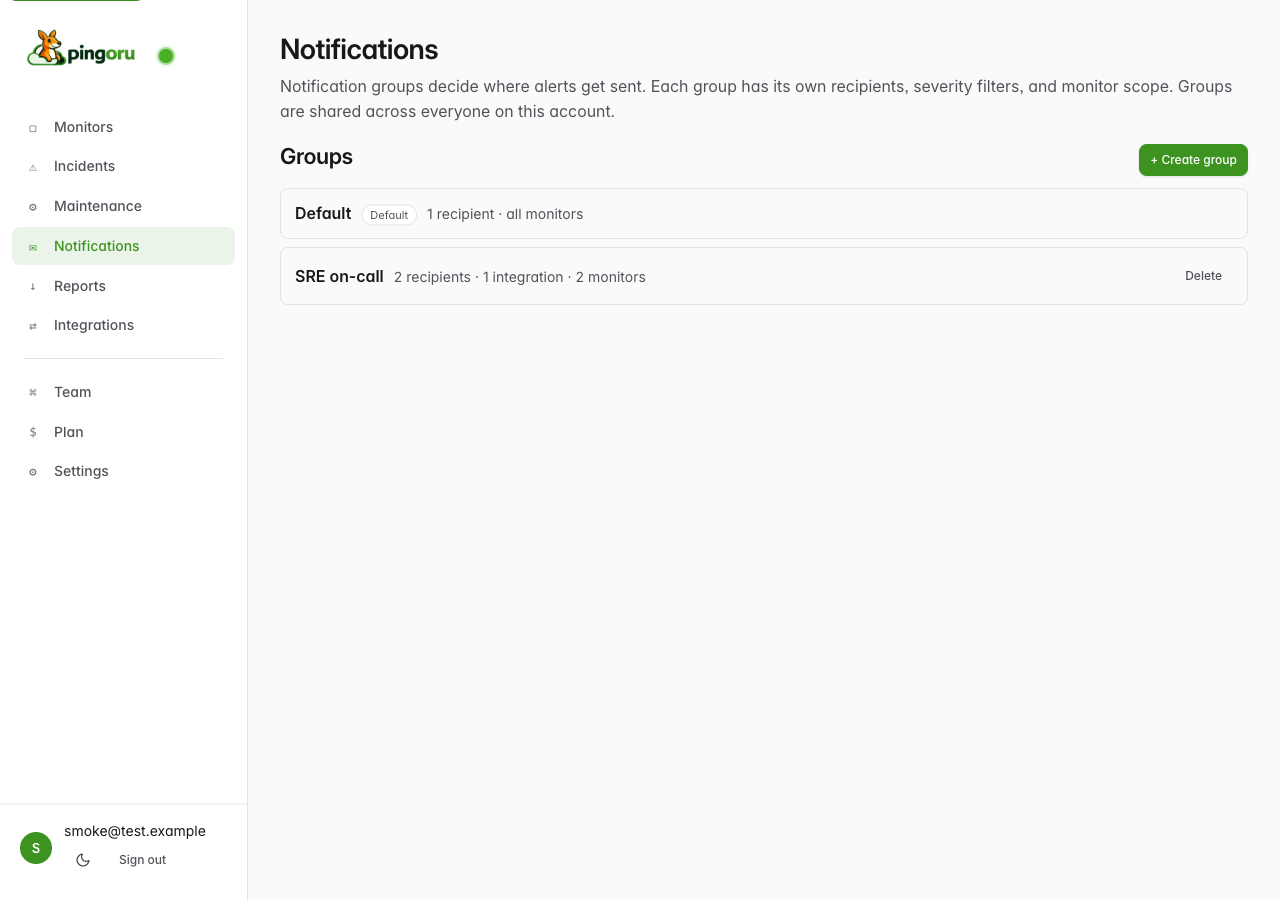
You can edit the Default group freely — change its filters, add more recipients, attach integrations, or narrow its scope. You just can't delete it.
Editing a group
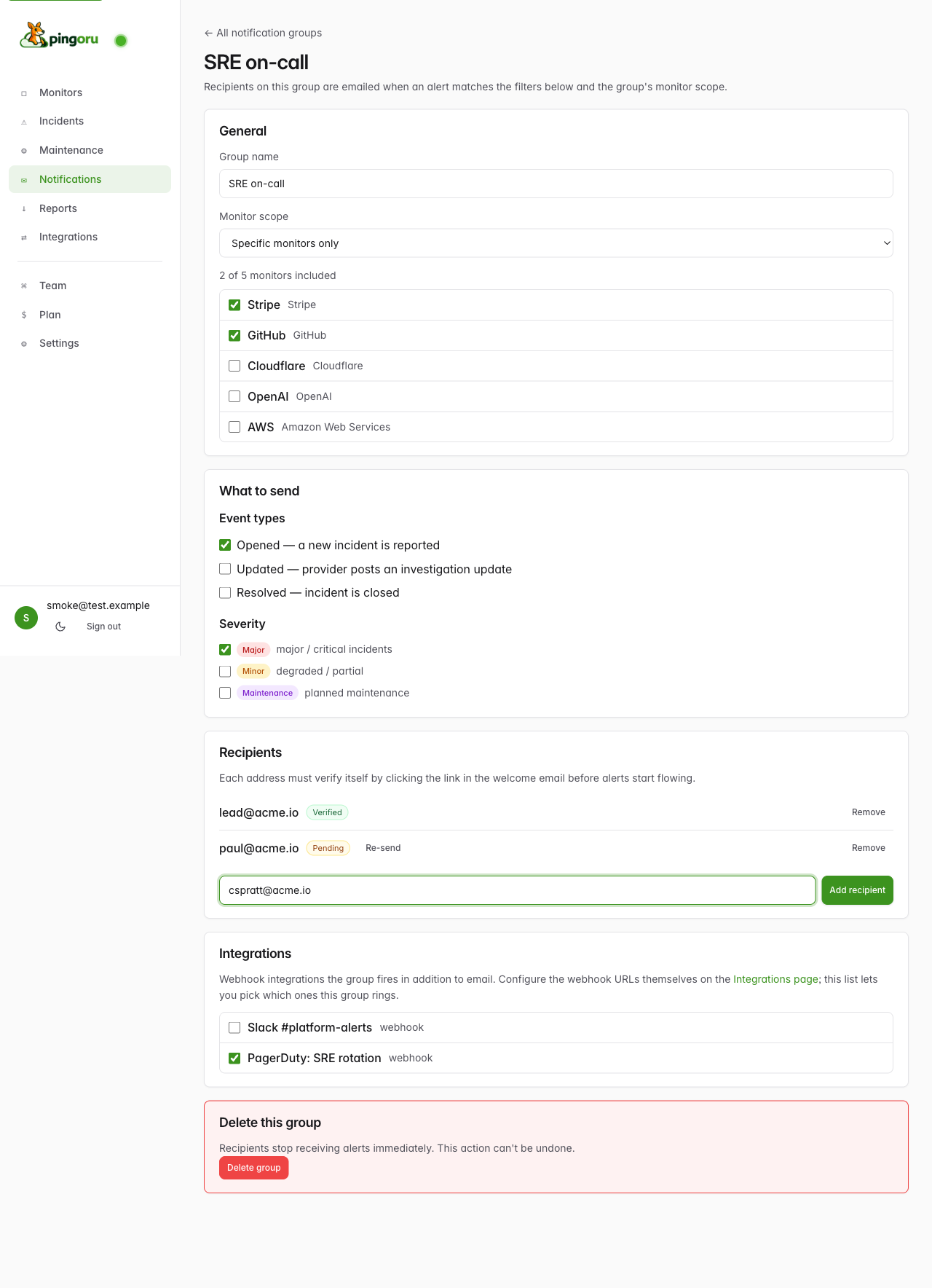
Click any group on /app/notifications to open the editor. The whole page is one form: edit anything, click Save changes at the bottom, your edits go in atomically.
Adding email recipients
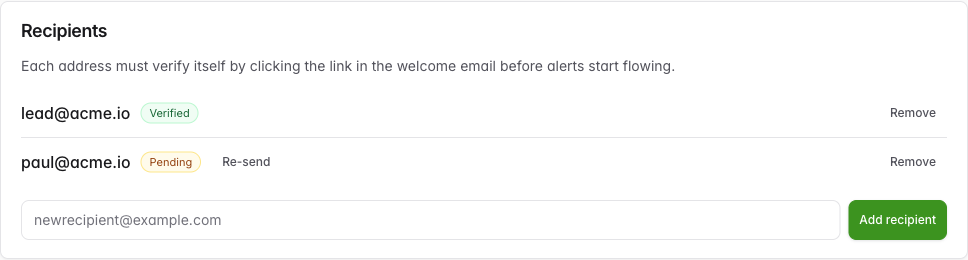
Under Recipients, type an email and click Add recipient. We send the address a one-shot verification link. Until they click it, the row sits as Pending; once they click, it flips to Verified and starts receiving alerts.
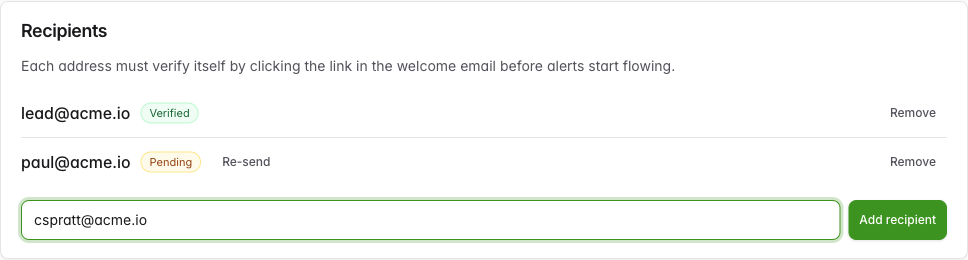
Why pending? If the verification gate didn't exist, a typo'd email could spam a stranger every time an incident fires. The gate also prevents addresses from leaving silently — every outgoing email has a per-recipient unsubscribe link, so a teammate can leave on their own without anyone reconfiguring.
Attaching webhook integrations (Slack, Discord, Teams, PagerDuty…)
Webhook integrations are a separate concept from groups. Create the webhook URL once on the Integrations page; attach it to as many groups as you want. The pattern matches how a Slack webhook URL works — one URL, multiple subscribers possible.
Step 1 — create the webhook on /app/integrations
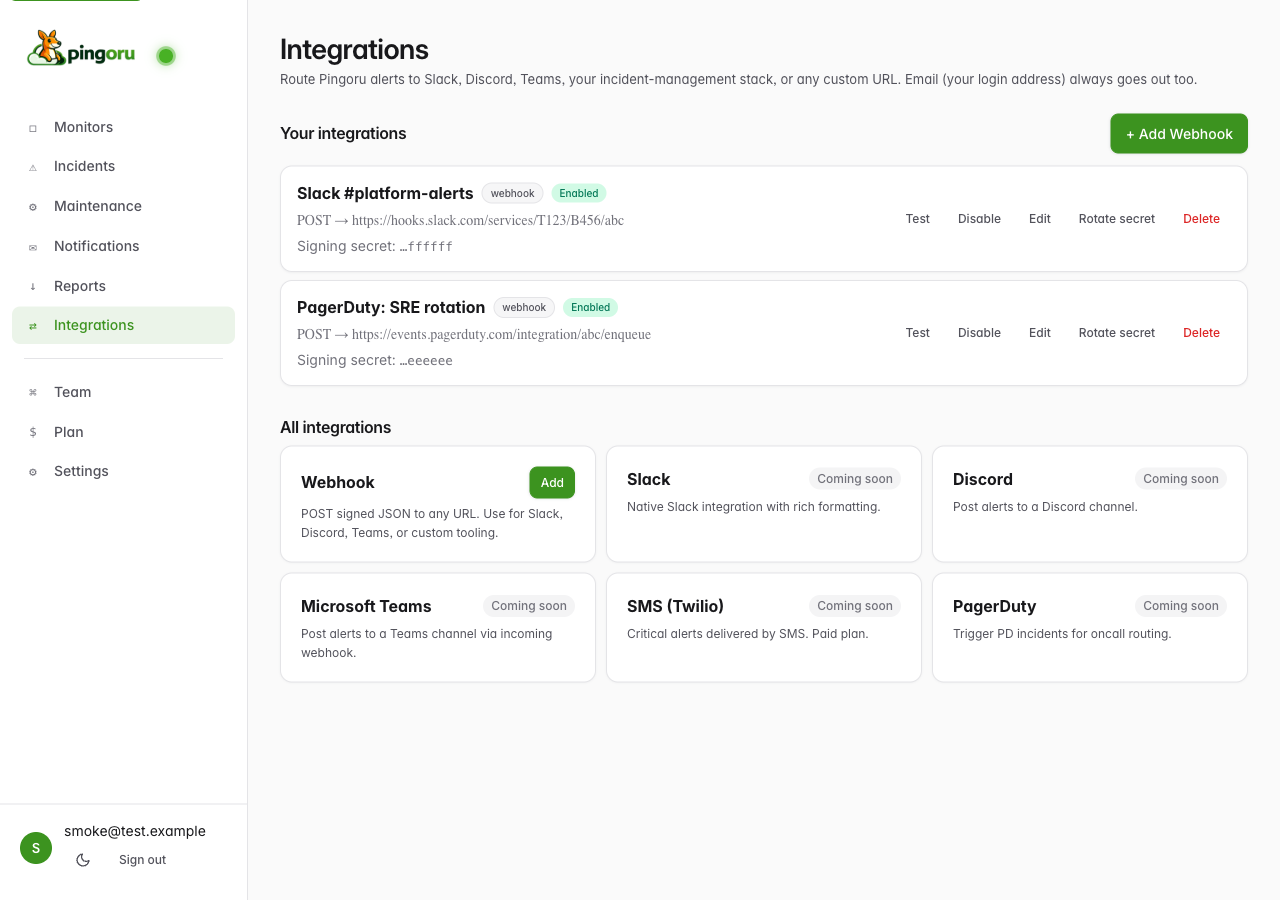
Step 2 — attach it to a group
Back on the group editor, scroll to the Integrations section. The webhook you just created is listed with a checkbox. Tick it and Save.
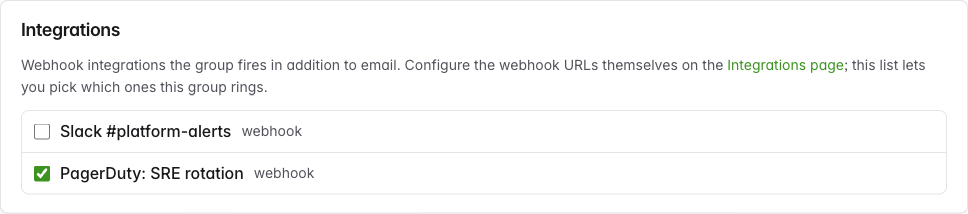
Email-only, webhook-only, and both-at-once are all valid. A group with zero email recipients and one webhook attached is a perfectly fine "webhook-only" setup. A group with three email recipients and no integrations is "email-only". A group with both fires both.
Monitor scope
In General, the Monitor scope dropdown picks how the group decides which incidents to handle:
- All monitors on this account — covers every monitor you have, including new ones added later.
- Specific monitors only — opens an inline picker; tick the monitors that should fall under this group.
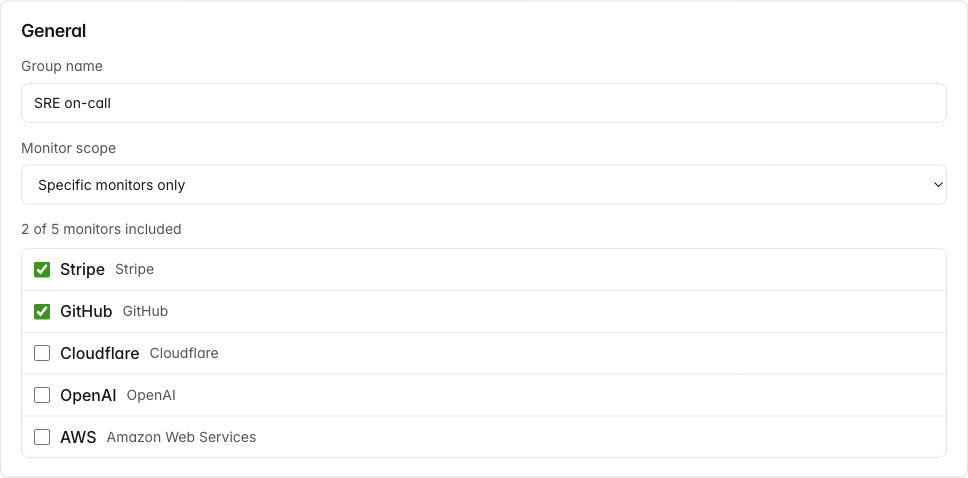
Specific-scope groups don't auto-include new monitors. If you add a new monitor and want a tighter group to cover it too, come back and tick it. The Default group's "all monitors" scope will catch it automatically in the meantime.
Severity + event filters
In What to send, two checkbox sets decide whether the group matches an incident:
- Event types:
- Opened — a new incident is reported by the vendor
- Updated — vendor edits an existing incident's investigation thread (off by default; high-volume)
- Resolved — vendor marks the incident closed
- Severity:
- Major — major / critical incidents (full outages, regional failures)
- Minor — degraded performance, partial outages
- Maintenance — planned vendor maintenance windows (off by default; usually low-urgency)
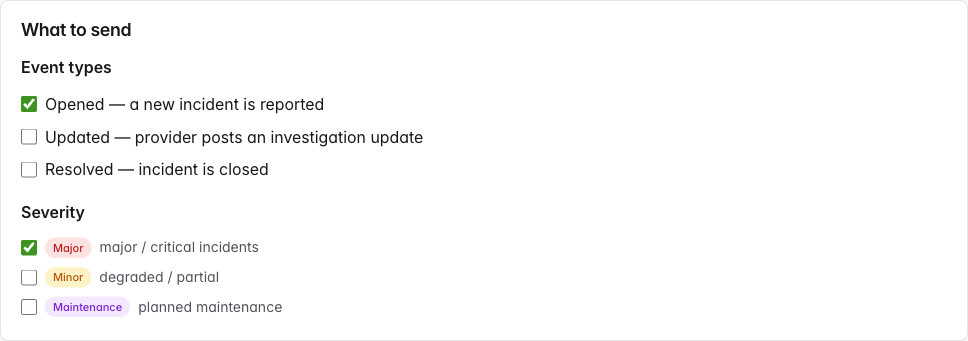
An incident matches the group only when both at least one event-type checkbox AND at least one severity checkbox apply. So a group with "Major + Maintenance" off but "Opened + Resolved" on still won't fire — there's no severity left to match.
Common multi-group patterns
Most teams end up with three or four groups, each pointing at a different audience with a different threshold for "wake me up."
Critical → on-call
- Severity: Major only
- Event types: Opened only
- Scope: Specific monitors (top 3 dependencies)
- Recipients: PagerDuty webhook integration; no email recipients
Wakes the on-call. Skips chatter. Major-only plus narrow scope keeps cardinality low enough that a page never feels like noise.
Engineering → team chat
- Severity: Major + Minor
- Event types: Opened + Resolved (skip Updated to halve volume on long incidents)
- Scope: All monitors
- Recipients: Slack webhook + 2–3 engineer emails
Visibility for engineers without incident-update fatigue.
Maintenance → shared inbox
- Severity: Maintenance only
- Event types: Opened + Resolved
- Scope: All monitors
- Recipients: [email protected]
Stays out of on-call's way. The team that schedules releases gets a quiet feed of every vendor's planned work.
Adding a monitor to multiple groups
A monitor can belong to as many groups as you want. The group editor is one way to add monitors; the monitor's own configure page is the other.
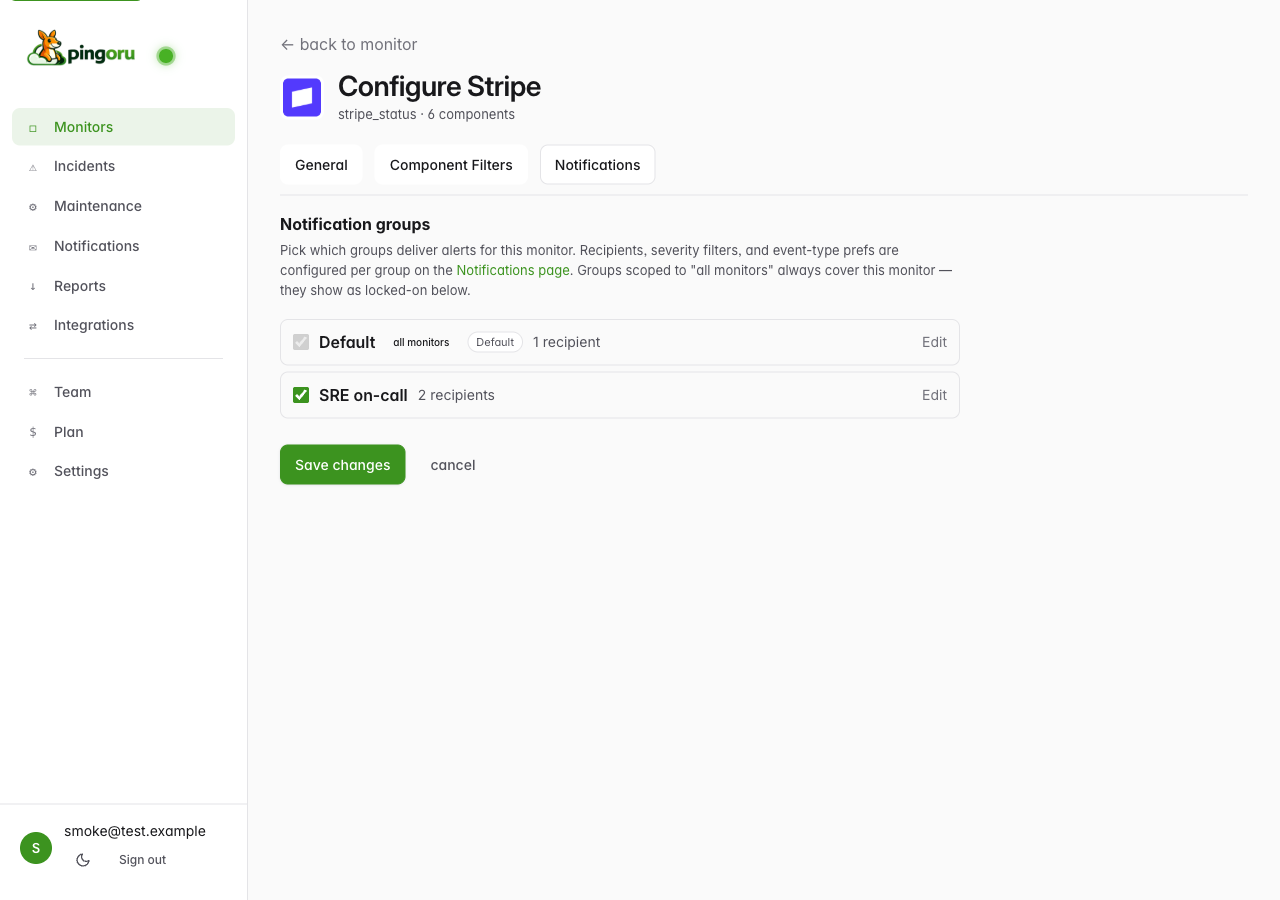
Where did per-monitor notification settings go?
Older versions of Pingoru let you toggle severity and event-type preferences on each monitor individually. That model is gone — the same toggles now live on each group. If you want one monitor to have stricter alerting, put it in a group with stricter filters; if you want laxer alerting, put it in a group with laxer filters.
This was a deliberate trade. Per-monitor settings forced you to reconfigure 30 monitors to change one rule. Per-group settings let one rule cover 30 monitors at once.
Troubleshooting
I added a recipient but they're not getting alerts.
Check the recipient's status in the group editor. If it says Pending, they haven't clicked the verification link yet. We don't send to unverified addresses — a typo would otherwise spam a stranger.
The "Re-send" button next to a pending recipient sends a fresh verification email; it's rate-limited to once per hour per recipient. Have them check their spam folder for the original too.
I attached a webhook but no events are firing.
First, fire the test payload from the Integrations page — that confirms the URL itself works.
If the test works but real events don't, check the group's filters and scope. If the group is scoped to "specific monitors" and the affected monitor isn't ticked, no fire. If the group's severity filters don't match the incident's severity (e.g. Minor incident, Major-only group), no fire.
The Default group has the same name as one of my webhooks.
A webhook integration on /app/integrations and a notification group on /app/notifications are different things — the webhook is just the URL endpoint; the group is what decides when to fire it. They live in the same database table internally but they appear on separate pages and serve different purposes.
If you want one webhook to fire from one group only, attach it only to that group. The webhook itself doesn't need to share a name with the group.
Will the same webhook fire twice if it's attached to two groups that both match an event?
No. Webhook deliveries are idempotent on (channel, event) — even if multiple groups would
fire the same webhook for the same incident, the delivery is
unique by event so the URL gets called exactly once.
I want to mute a group temporarily without deleting it.
Two options: (1) edit the group and uncheck every event type,
which makes nothing match; or (2) toggle the group's Enabled switch via the API
(PATCH /api/notifications/groups/<id> with is_enabled: false). UI for the toggle is on the
near-term roadmap.
Didn't find what you needed? Let us know — we'll add it to the guides.